
What lossy compression actually discards
Lossy encoders reduce stored data by approximating or removing information in a picture. JPEG and lossy WebP typically offer substantial savings for photographs because not every subtle variation must be stored exactly. At very low settings, smooth gradients may show bands, edges may develop halos, and textured details can become blocky. The result can still be useful for a website or message, but it is not a byte-for-byte copy of the source.
What lossless compression preserves
Lossless encoding reconstructs the decoded pixel values exactly when the same pixel format and color interpretation are maintained. PNG uses lossless compression; WebP also offers a lossless mode. Lossless does not mean every file has identical metadata, color profiles or sizes after conversion. It also does not promise the output will be smaller: images with noise or irregular patterns may resist compression.
A reproducible comparison instead of a magic percentage
Choose one source photograph and one simple graphic. Keep the originals. Export the photograph as a high-quality JPEG, then at a more aggressive setting, and compare output byte counts and critical image details. Separately, save a flat-color graphic as PNG. An example number shown in an illustration is not a benchmark of Every Tiny Tool. Actual compression ratios depend on the image, export settings, encoder and whether resizing occurs.
Why saving a lossy image repeatedly matters
An already-compressed JPEG may acquire additional artifacts when re-encoded with another lossy save. This is especially easy to spot around small text, foliage and contrasting edges. Preserve the original or a lossless editing master, and make final delivery versions from that master whenever possible. Merely copying an existing JPEG file does not cause generation loss; re-encoding does.
Which format fits which job
Photographic images often benefit from JPEG or lossy WebP. Diagrams, logos, screenshots and transparency-heavy assets often benefit from PNG or a carefully chosen lossless format. WebP may be used with either compression method, so the filename extension alone does not tell you whether its content is lossy. Inspect a sample at the size people will actually see it.
A simple quality-check workflow
Check the source dimensions, choose one variable to change, export, then inspect the output next to the original at 100% scale. Record the exact file size and file format. Examine gradients, thin text and textured areas before choosing the smaller export. For critical source artwork, archive the original separately from delivery files.
H
o
U
s
W
h
K
e
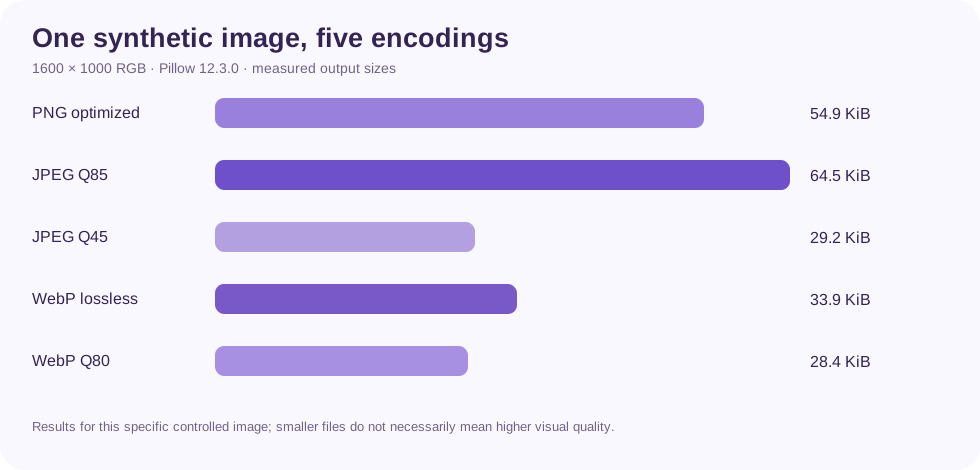
Measured file-size example: one controlled image
We generated a synthetic 1600 × 1000 RGB test image with a smooth color gradient, 125 colored circles, and one line of text. We exported the same unchanged pixels using Pillow 12.3.0 and compared the exact file sizes below. No resize or crop was applied, and all outputs use 1600 × 1000 pixels. These results are measurements from this reproducible sample, not an Every Tiny Tool application benchmark and not a prediction of how your own photo will compress.
| Export | Size | Encoder options |
|---|---|---|
| PNG (lossless) | 54.9 KiB (56,204 bytes) | PNG optimize=True |
| JPEG Q85 | 64.5 KiB (66,037 bytes) | JPEG quality=85 optimize=True |
| JPEG Q45 | 29.2 KiB (29,879 bytes) | JPEG quality=45 optimize=True |
| WebP lossless | 33.9 KiB (34,698 bytes) | WEBP lossless=True method=6 |
| WebP Q80 | 28.4 KiB (29,112 bytes) | WEBP quality=80 method=6 |
For this synthetic test, JPEG Q45 used 46.8% fewer bytes than the optimized PNG. JPEG Q85 actually used more bytes than that PNG. This illustrates why file size does not have a fixed relationship with the word “lossy.” The source contains large regular areas that are comparatively friendly to lossless encoding.
For each output, the file dimensions remained 1600 × 1000. The files were saved with identical decoded source pixels, without altering them between exports. The quality settings above are Pillow settings and may not map exactly to a browser tool's slider.
Try the workflow
Start with a non-sensitive sample, preserve the original and compare the output before using it.
Open relevant tool ↗